
Software Vendors & OEMs
Ready to integrate web DICOM PACS Viewer and connectivity solutions


 Documentation
Minimal Client-Side Requirements
Logging On
Search of Studies
System Menu
Hanging protocols settings
Opening Studies
Patient History
Quick Menu
Viewport Features
Segmentation tools
Measurements
Advanced MPR Features Oblique MIST
Customization Features
Add-ons: Optional
Documentation
Minimal Client-Side Requirements
Logging On
Search of Studies
System Menu
Hanging protocols settings
Opening Studies
Patient History
Quick Menu
Viewport Features
Segmentation tools
Measurements
Advanced MPR Features Oblique MIST
Customization Features
Add-ons: Optional
Advanced MPR Features: Oblique MIST feature with MPR/MIP/3D rendering
Watch the video tutorial demonstrating the Oblique MIST feature with MPR/MIP/3D rendering of MedDream:

Toolbar > MPR > Oblique MIST. Oblique MIST allows the users review structures better that are not in the acquisition orientation or orthogonal views. Multiplanar reconstruction (MPR) view in oblique planes.
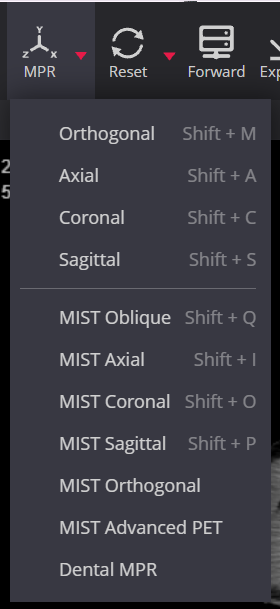
Slice thickness by default is 0.01 mm. Maximum thickness value could be up to 600 mm.

The slice thickness can be changed in two ways:
1. Selecting the thickness value from the list:

2. By moving the cursor in the scroll bar:

Image with changed thickness to 65 mm:

The image preparation method can be changed by selecting a value from the drop-down list.
MIP. Maximum Intensity Projection mode for rendering the images:

MinIP. Minimum Intensity Projection mode for rendering the images:

AVG. Average mode for rendering the images:

Regular features: Window leveling, Pan, Zoom, Rotate and Flip; Scroll, Crosshair, Sync / Desync reconstructed views.

Synchronized Zooming in the viewports:
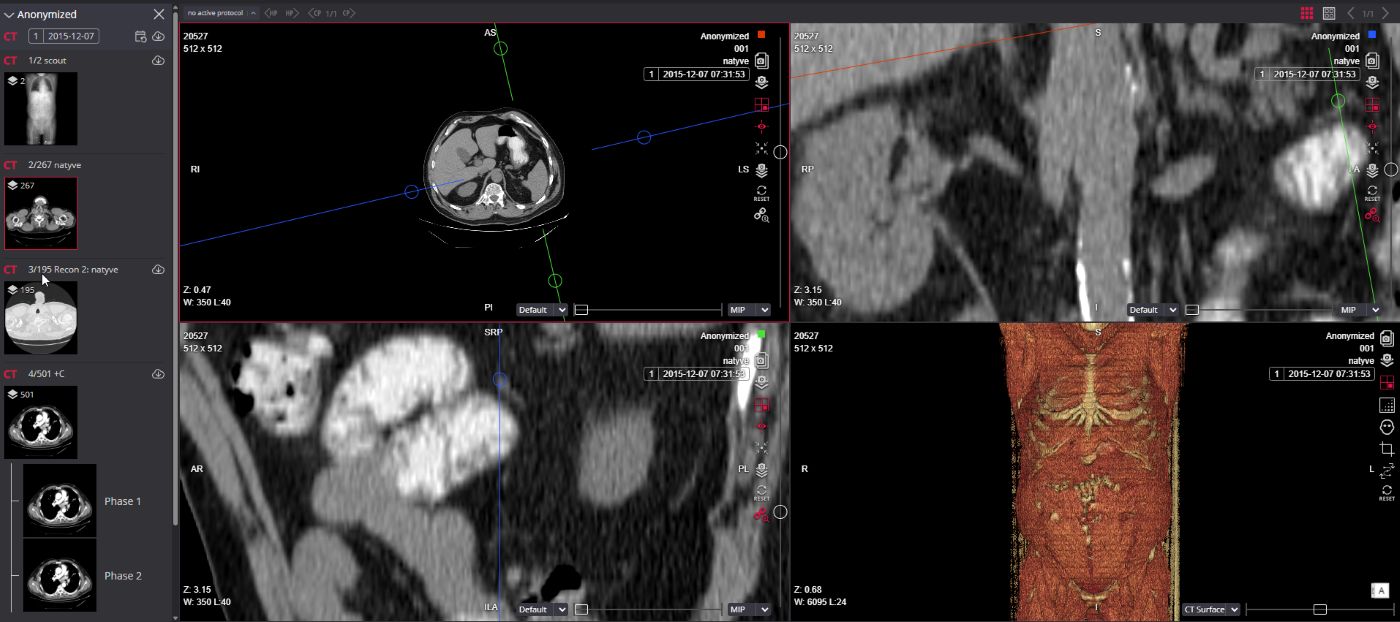
Specific features: possibility to use Fusion tools in MIST Oblique. Set Transparency level and use Color palette:

Measurements: Line, Angle, Polyline, Area, Ellipse, Flexpoly, Pencil, Continuous measurement, Show Angles, Ruler, Delete Selected, Delete All.

Viewport features: Copy to clipboard, Secondary capture, Selectable layouts, Hide/Show the Axis, Move the axis to the center, Reset:

Save as a new series. Save a reconstructed MPR viewports as a new series in the study:
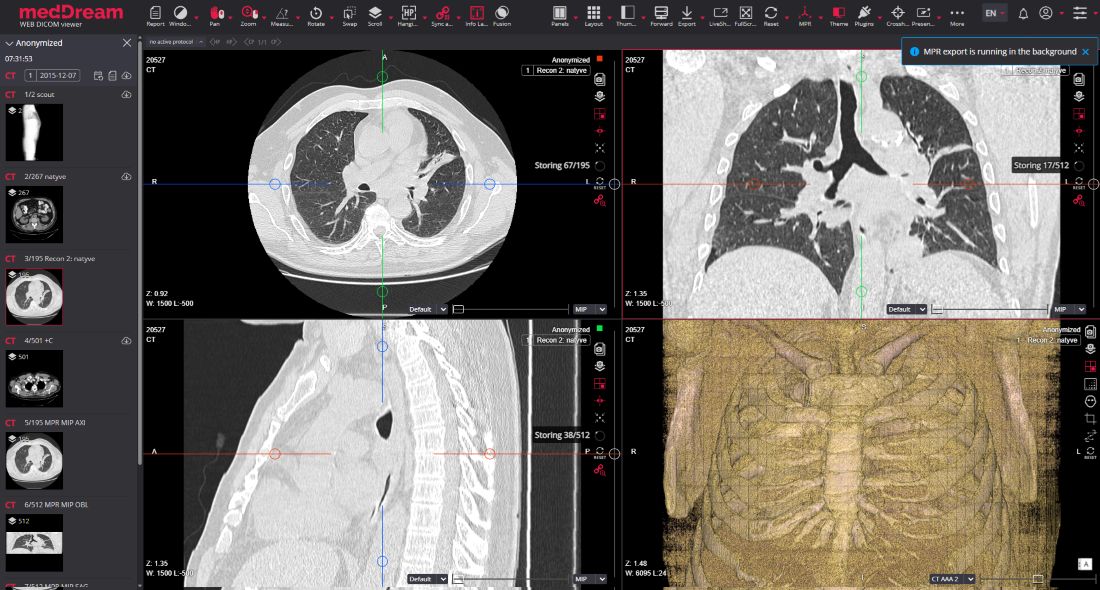
Saved reconstructed MPR viewports as a new series in the thumbnails:

3D rendering. Rendering of 3D volume with Rotation, Pan, Zoom, and Window leveling functions and applying the transfer function presets (configurable list). Anatomical directions information in 3D viewports. Bounding Box cropping. 3D quality selection. Orientation for reconstructed 3D volume changing.
Selecting the presets:

Copy 3D viewport content with Info labels to the clipboard:

3D Bounding Box cropping:

3D quality selection:

3D orientation change:

Volume presets in Settings:

 Curved MPR
Curved MPR. Toolbar > MPR > Oblique MIST > Switch to CPR viewport icon in 3D image viewport. The system converts the 3D viewport to 2D CPR viewport and displays the controls for enabling the Curved Planar Reconstruction (CPR) feature.
Switching to the Curved Planar Reconstruction (CPR) in the 3D image viewport:

Displaying information on how to do the curved planar reconstruction:

Activating the CPR tool in any of the 2D viewports to draw the polyline for the plane:

Displaying the reconstructed 2D view in CPR viewport:

MPR/MIP/3D comparison. Several MPR/MIP/3D views can be compared at the same time:


© 2026 MedDream UAB. All rights reserved.


 Software vendors
 Hardware vendors
 System Integrators
 AI & CAD vendors
 Education & Research
 AWS HealthImaging
 Azure Health Data Services
 Google Cloud Healthcare API
 Radiology
 Cardiology & Ultrasound
 Ophthalmology
 Orthopedics
 Dentistry
 Surgery
 Mammography
 Pathology
 Veterinary


